Knowlense workflow guide

A concise, step-by-step reference for setup and review.

Connect your Knowlense account

Step 1Connect your Knowlense account

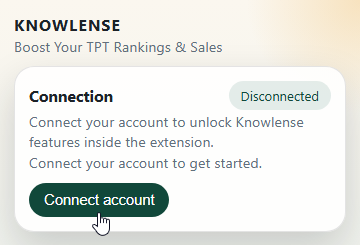
To start using the Knowlense extension, you need to connect your account. Pin the extension to your browser toolbar, click the icon, and the Connect your Knowlense account popup will appear. Select Connect account to start linking this browser to your Knowlense account.
Approve the browser session

Step 2Approve the browser session

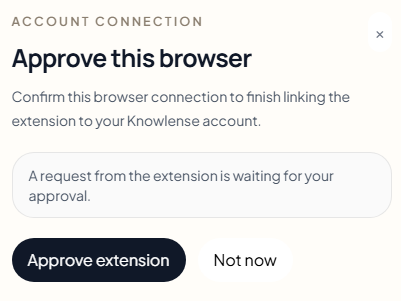
When you select Connect account, a web tab opens. Sign in or create an account (email, Google, or GitHub), then approve the connection. You will see the browser listed under Connected browsers, and the extension will show Connected with your account status. New accounts start on Free (trial) with premium access for 3 days.

Open a live TPT product page

Step 3Open a live TPT product page

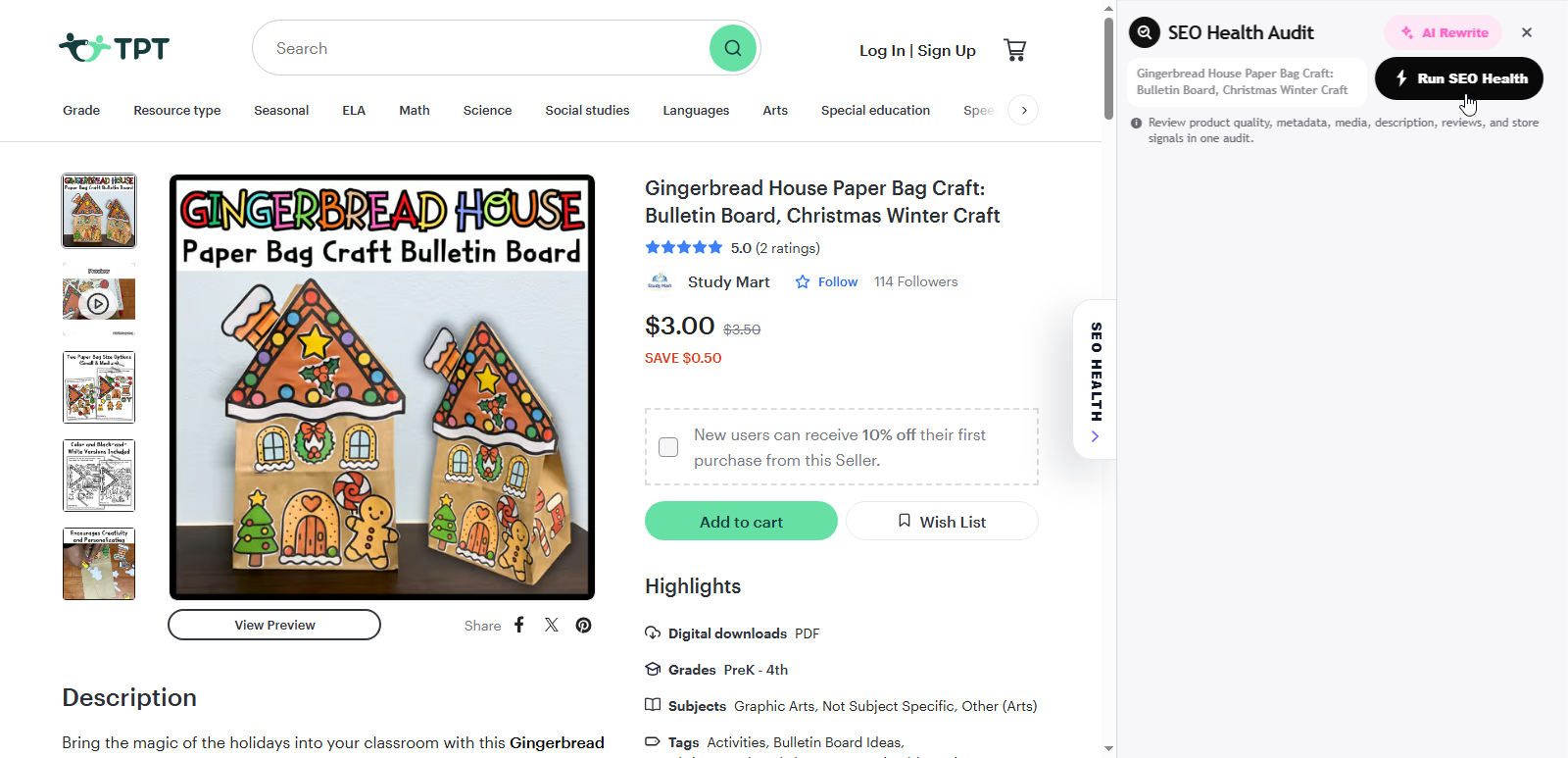
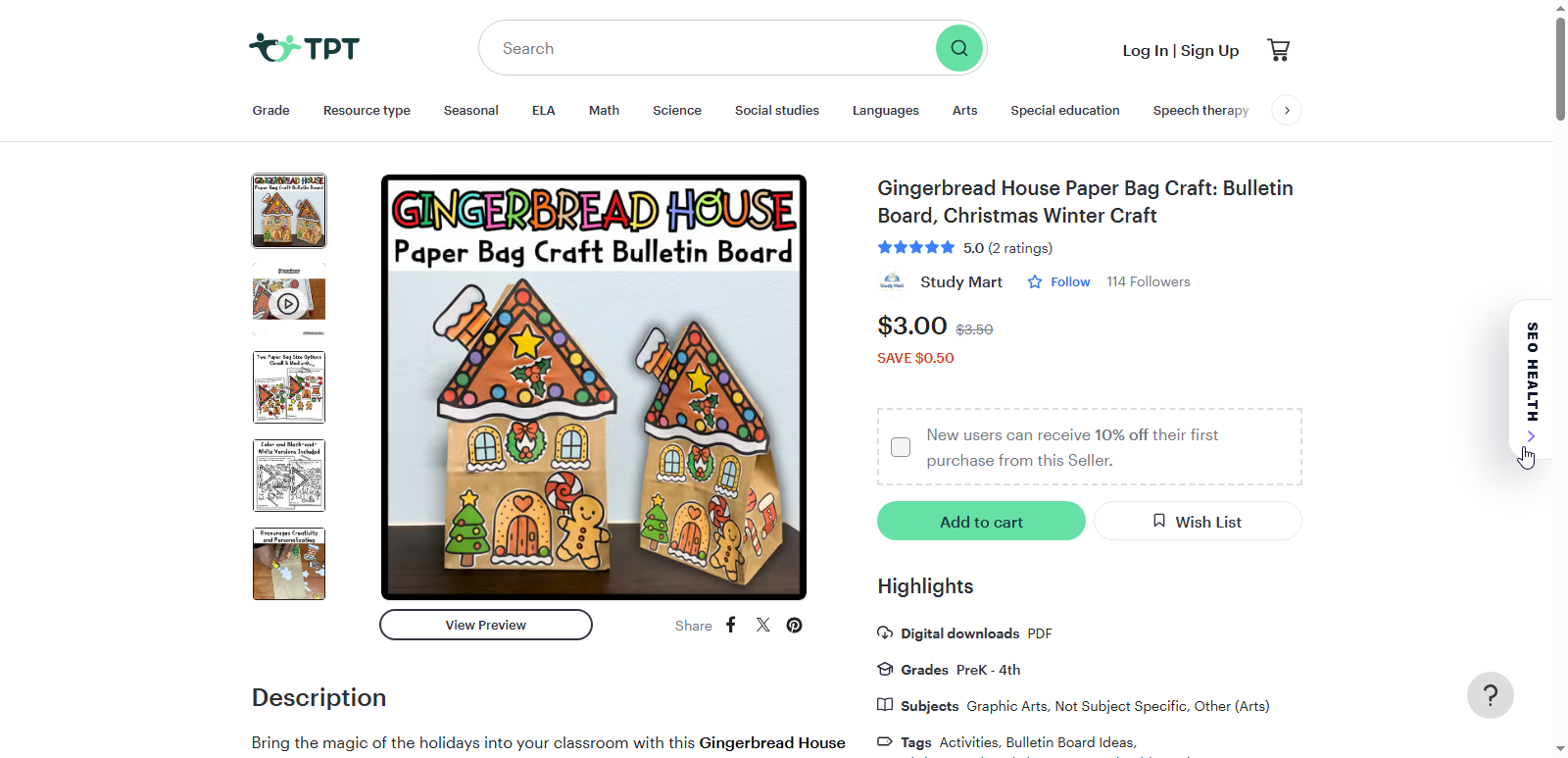
Open a live TPT product page to begin. The extension only works on TPT product pages, not the homepage, search results, or the TPT edit page. On the right side of the product page, you will see the SEO Health bubble. Click it to open the panel. To close, click the bubble again or use the X in the panel.

Run an SEO Health audit

Step 4Run an SEO Health audit

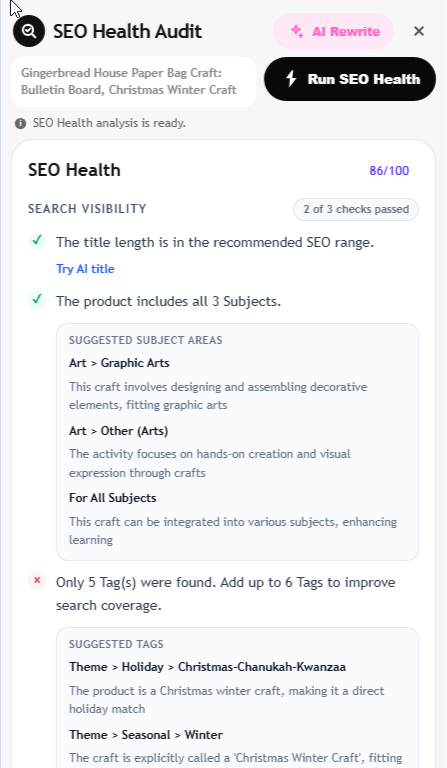
Inside the SEO Health Audit panel, confirm the product name appears below the panel title. Then select Run SEO Health and wait a few seconds for analysis (longer for listings with more data). Knowlense reviews the title, description, price, subjects, tags, and key metadata, then provides SEO checks and improvement guidance.

Review the core checks

Step 5Review the core checks

When the audit finishes, the results appear in the panel. Review the checks and the overall SEO score shown in the top-right of this section.

Work through the audit sections

Step 6Work through the audit sections

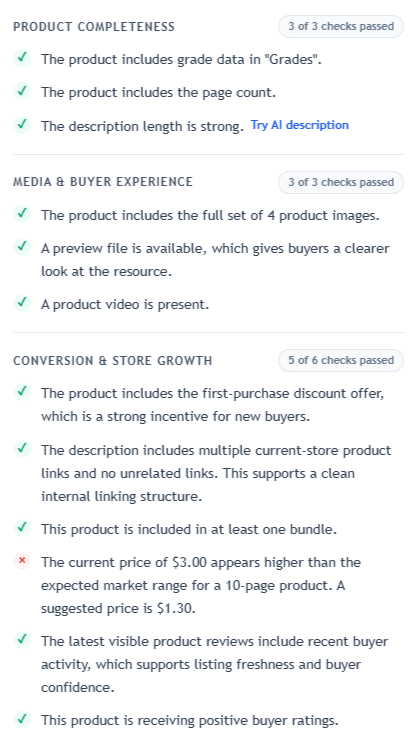
The main sections include Search Visibility, Product Completeness, Media & Buyer Experience, and Conversion & Store Growth. Green checkmarks mean the item meets the criteria; red X items need attention.

Apply recommended standards

Step 7Apply recommended standards

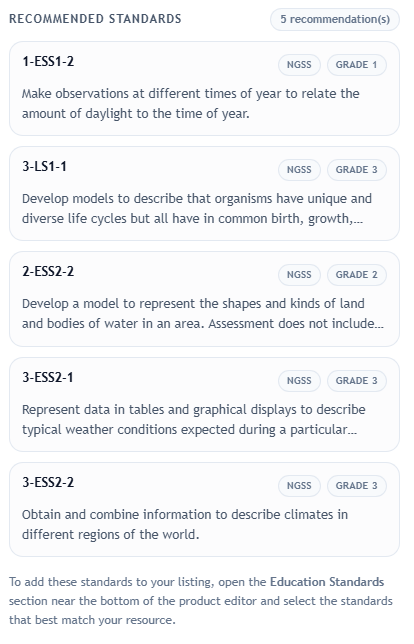
Some resources benefit from Education Standards, but browsing the full TPT list can be difficult. Knowlense matches your listing to relevant Education Standards from TPT and recommends the best fit. Review the Recommended Standards list and add the relevant ones to your resource. Adding standards can improve search visibility and conversion.

Use Keyword Opportunities

Step 8Use Keyword Opportunities

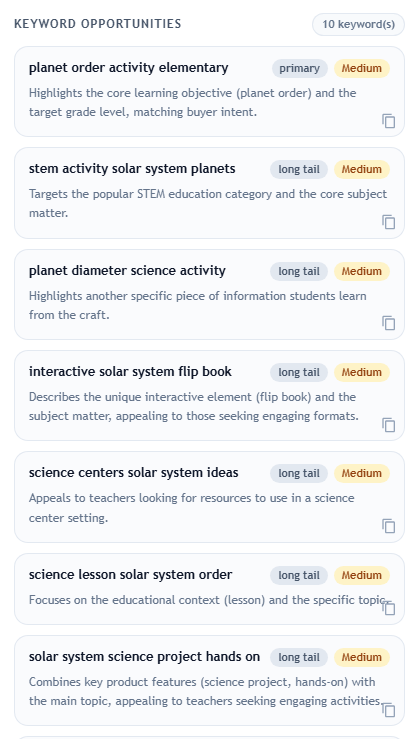
Based on product metadata and search-focused analysis, Knowlense provides 10 keyword suggestions. They are grouped as primary, long-tail, and supporting with popularity indicators. Use them to focus your SEO decisions on the keywords most likely to perform.

Generate AI Rewrite options

Step 9Generate AI Rewrite options

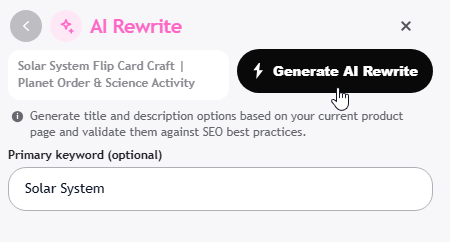
Select AI Rewrite in the top-right of the panel to open the AI Rewrite view. This feature rewrites titles and descriptions using a stronger SEO structure and clearer buyer intent. You can enter a keyword in Primary keyword (optional) to guide the output. Then select Generate AI Rewrite to create new title and description options.

Choose a title option

Step 10Choose a title option

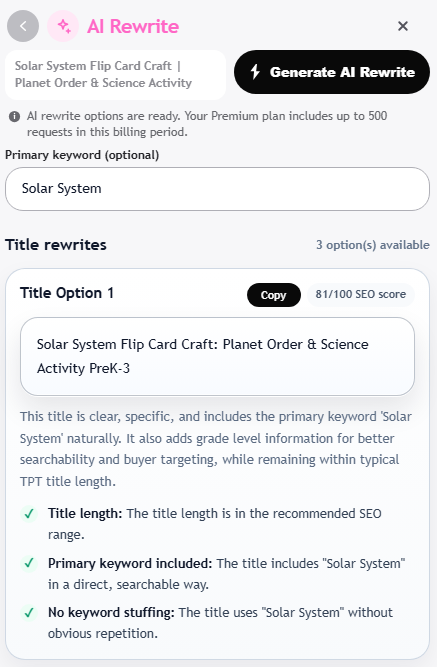
After Generate AI Rewrite finishes, you will see three title options and three description options. Each title includes checks so you can see what meets the criteria and what needs work. Select the best title, copy it, then paste it into your TPT edit page.

Review description rewrites

Step 11Review description rewrites

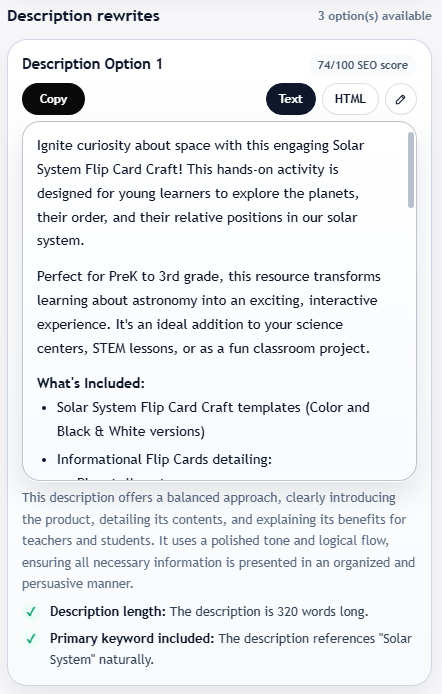
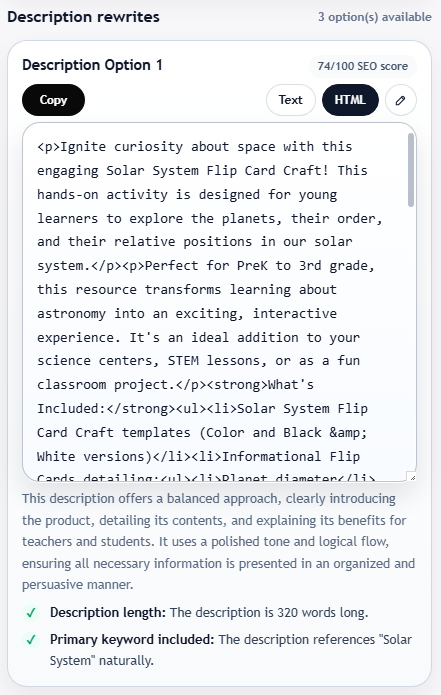
The AI description options provide a strong structure with introduction, product details, and persuasive buying reasons. Choose the option you prefer, copy it, and paste it into your TPT product description.

Switch to HTML when needed

Step 12Switch to HTML when needed

You can switch the AI description to HTML. Use this when you want formatted output you can paste directly into the TPT description field.

Polish the final description

Step 13Polish the final description

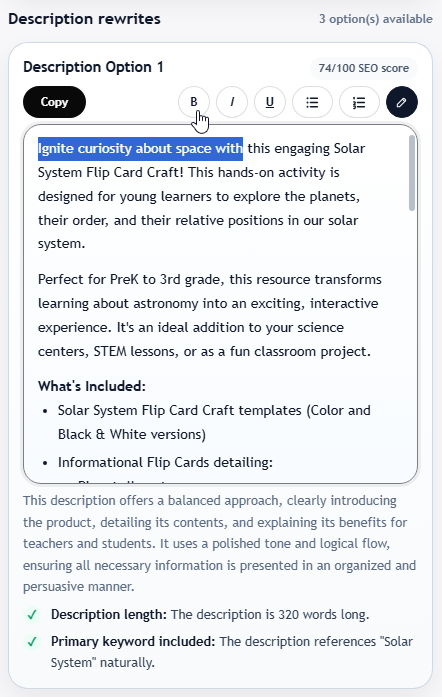
If you want to refine the AI description, use the editor tools for bold, italics, underline, and lists. Select the pencil icon on each description card to edit, then copy and paste the final version into your TPT edit page.

Free (trial) includes access to premium features with limits. Upgrade to Premium for continued access on monthly or yearly plans.